How to Add a Flutter Module Inside an Existing iOS App
A complete step-by-step guide to integrating a Flutter module into an existing native iOS app — covering podfile setup, route handling, and common pitfalls to avoid.

Integrating Flutter into an existing iOS app is a powerful approach — you get Flutter's speed and cross-platform UI without rewriting your native app from scratch.
This guide walks through the complete process.
Prerequisites
Before you begin, make sure you have:
- Flutter SDK installed (
flutter --version) - Xcode 15+
- CocoaPods installed
- An existing iOS project (Swift or Objective-C)
Step 1: Create the Flutter Module
In your terminal, navigate to the directory containing your iOS project and create a Flutter module alongside it:
cd /path/to/your/projects
flutter create --template=module my_flutter_module
Your directory structure should now look like:
projects/
  my_ios_app/
  my_flutter_module/
Step 2: Add Flutter to the Podfile
Open your iOS project's Podfile and add the following lines:
# Flutter Integration
flutter_application_path = '../my_flutter_module'
load File.join(flutter_application_path, '.ios', 'Flutter', 'podhelper.rb')

target 'MyiOSApp' do
  # Your existing pods...

  install_all_flutter_pods(flutter_application_path)
end

post_install do |installer|
  flutter_post_install(installer) if defined?(flutter_post_install)
end
Then run:
pod install
Step 3: Configure the AppDelegate
Open your AppDelegate.swift and configure the Flutter engine:
import UIKit
import Flutter

@UIApplicationMain
class AppDelegate: UIResponder, UIApplicationDelegate {

    lazy var flutterEngine = FlutterEngine(name: "my_flutter_engine")

    func application(
        _ application: UIApplication,
        didFinishLaunchingWithOptions launchOptions: [UIApplication.LaunchOptionsKey: Any]?
    ) -> Bool {
        flutterEngine.run()
        GeneratedPluginRegistrant.register(with: self.flutterEngine)
        return true
    }
}
Step 4: Present the Flutter View Controller
In the native ViewController where you want to launch Flutter:
import UIKit
import Flutter

class ViewController: UIViewController {

    @IBAction func openFlutterScreen(_ sender: Any) {
        guard let appDelegate = UIApplication.shared.delegate as? AppDelegate else { return }

        let flutterViewController = FlutterViewController(
            engine: appDelegate.flutterEngine,
            nibName: nil,
            bundle: nil
        )

        flutterViewController.modalPresentationStyle = .fullScreen
        present(flutterViewController, animated: true, completion: nil)
    }
}
Step 5: Handle Routes in Flutter
In your Flutter module's main.dart, you can handle different routes sent from native:
import 'package:flutter/material.dart';

void main() => runApp(const MyFlutterApp());

class MyFlutterApp extends StatelessWidget {
  const MyFlutterApp({Key? key}) : super(key: key);

  @override
  Widget build(BuildContext context) {
    return MaterialApp(
      home: const FlutterHomePage(),
      routes: {
        '/profile': (context) => const ProfilePage(),
        '/settings': (context) => const SettingsPage(),
      },
    );
  }
}
To open a specific route from native:
let flutterViewController = FlutterViewController(
    engine: appDelegate.flutterEngine,
    nibName: nil,
    bundle: nil
)
flutterViewController.setInitialRoute("/profile")
present(flutterViewController, animated: true, completion: nil)
Step 6: Platform Channels (Native ↔ Flutter Communication)
To pass data between native iOS and Flutter:
In Flutter (Dart):
const platform = MethodChannel('com.myapp/bridge');

Future<String> getNativeData() async {
  final String result = await platform.invokeMethod('getUserName');
  return result;
}
In Native (Swift):
let channel = FlutterMethodChannel(
    name: "com.myapp/bridge",
    binaryMessenger: flutterViewController.binaryMessenger
)

channel.setMethodCallHandler { (call, result) in
    if call.method == "getUserName" {
        result("Madhubhai Vainsh")
    } else {
        result(FlutterMethodNotImplemented)
    }
}
Common Pitfalls
1. Build errors after pod install Make sure your Flutter module's iOS version matches or is compatible with your host app's deployment target.
2. Multiple FlutterEngine instances
Only create one FlutterEngine instance (in AppDelegate). Reuse it everywhere — creating multiple engines causes memory issues.
3. Flutter not finding plugins
Always call GeneratedPluginRegistrant.register(with: flutterEngine) in AppDelegate, not in the ViewController.
4. Hot reload doesn't work
Hot reload is only available when running the Flutter module directly (flutter run). In the integrated setup, you'll need to rebuild.
Testing the Integration
- Run your iOS app in Simulator
- Navigate to the screen that triggers Flutter
- The Flutter module should load smoothly
For debugging Flutter within the host app:
flutter attach
This connects Flutter DevTools to your running app for debugging.
Conclusion
Adding Flutter to an existing iOS app is a practical strategy for teams that want to adopt Flutter incrementally without a full rewrite.
The key steps:
- Create a Flutter module alongside your iOS project
- Add it to your Podfile
- Configure the FlutterEngine in AppDelegate
- Present FlutterViewController where needed
- Use Platform Channels for native ↔ Flutter communication
Once integrated, you can expand Flutter coverage screen-by-screen at your own pace.
For the full working example, see the GitHub repo: Flutter with SOLID Principles
Share this article
Related Articles
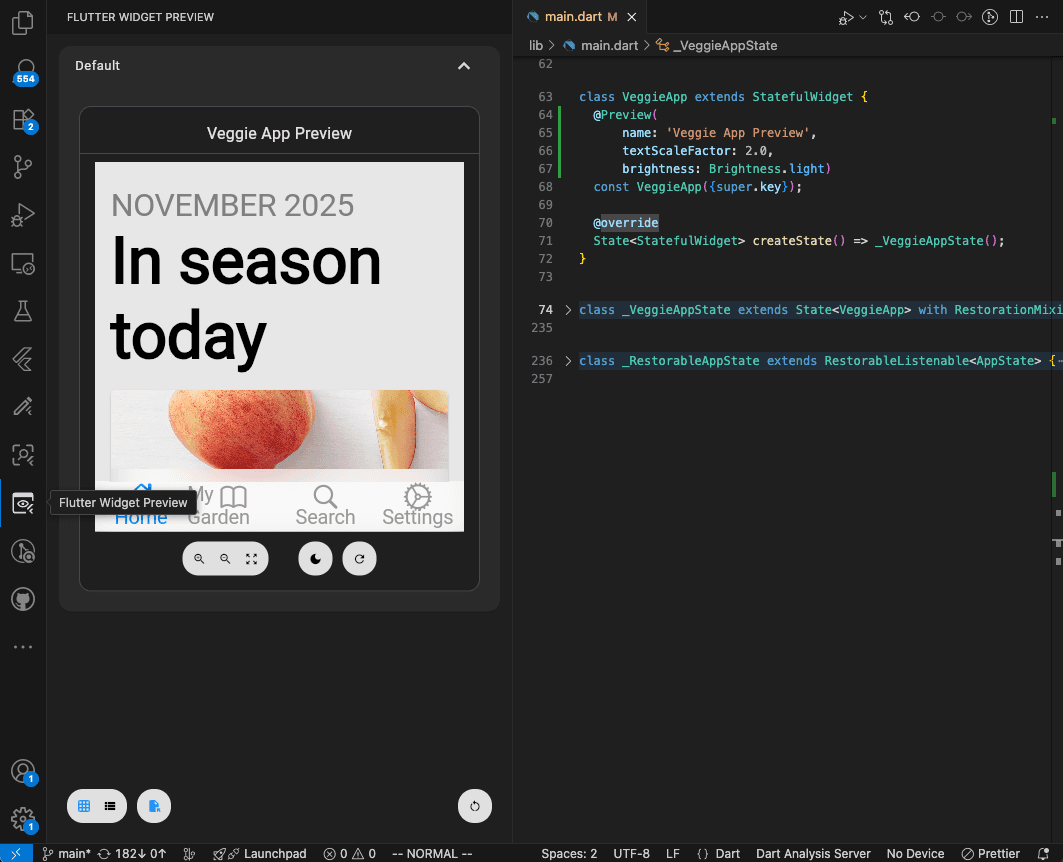
Flutter Widget Previews: Build Your First UI Component Without Opening the Whole App
Learn Flutter Widget Previews with a simple reminder card, official screenshots, and practical exercises for checking layouts and larger text.
Flutter vs Native Development in 2026: How Should Businesses Choose?
A comprehensive, data-backed architectural guide comparing Flutter and Native (Swift & Kotlin) mobile development — covering cost, market share, performance, team velocity, real-world enterprise case studies, and a step-by-step decision framework.
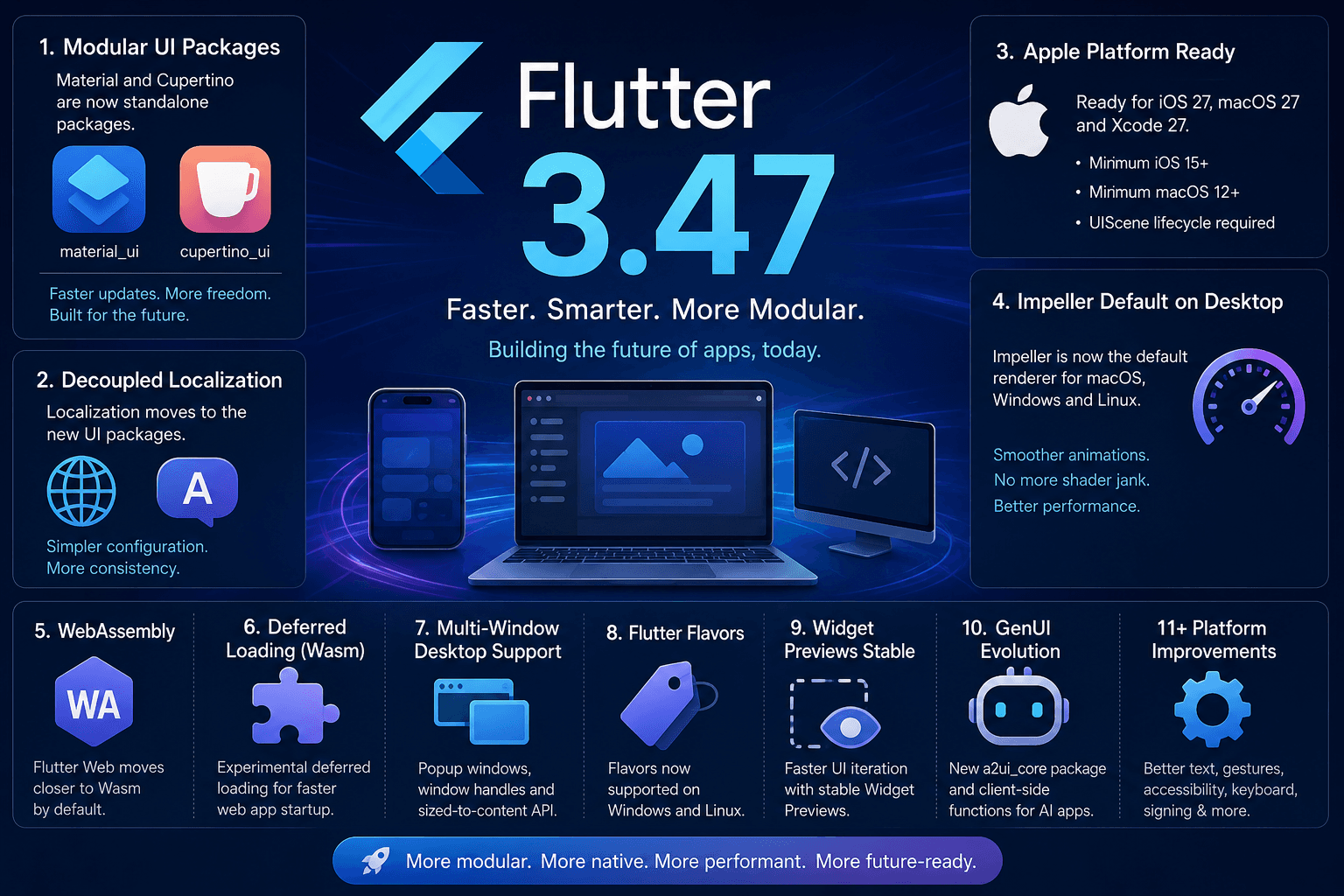
Flutter 3.47: A Major Step Toward a More Modular, Faster, and Future-Ready Framework
Flutter 3.47 introduces standalone Material and Cupertino UI packages, default Impeller renderer on desktop, mandatory UIScene for iOS 27, Wasm deferred loading, Widget Previews, and GenUI evolution.